
What is VSCode and How is it Useful?
Visual Studio Code (VSCode) is a free, open-source editor developed by Microsoft. It supports a variety of programming languages and extensions which enhance its functionality, making it a versatile choice for developers. It comes with: - A terminal for linux, powershell, cmd, git bash, and more. - A built in Editor - A built in File Explorer to view and manage your files/folders - Tons of extensions for fast development in any language
How to Install VSCode
- Visit the VSCode download page https://code.visualstudio.com/download and choose the version for your operating system.
- Follow the installation prompts to complete the setup.
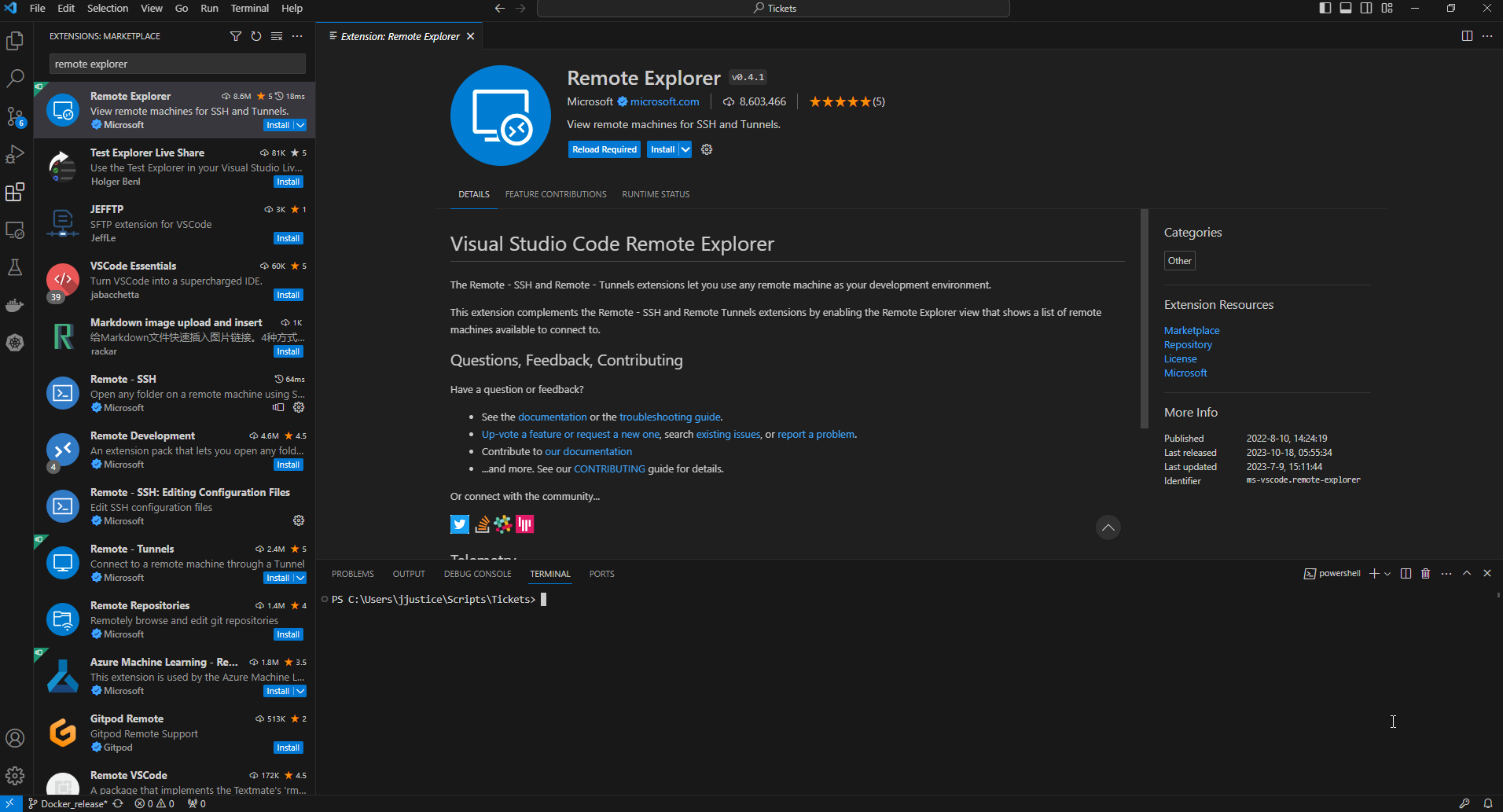
There are numerous extensions available for vscode that are helpful for development and power user efficiency. One of them is the remote explorer which allows you access files and folders from the vscode editor and vscode explorer.
How to get the Remote Explorer Plugin
- Open VSCode then click on the Extensions button on the left hand side ( or use Ctrl+Shift+X on Windows or Command+Shift+X on Mac).
- Search for "Remote Explorer" and click Install.
How to add your server to the list of remote explorer connections
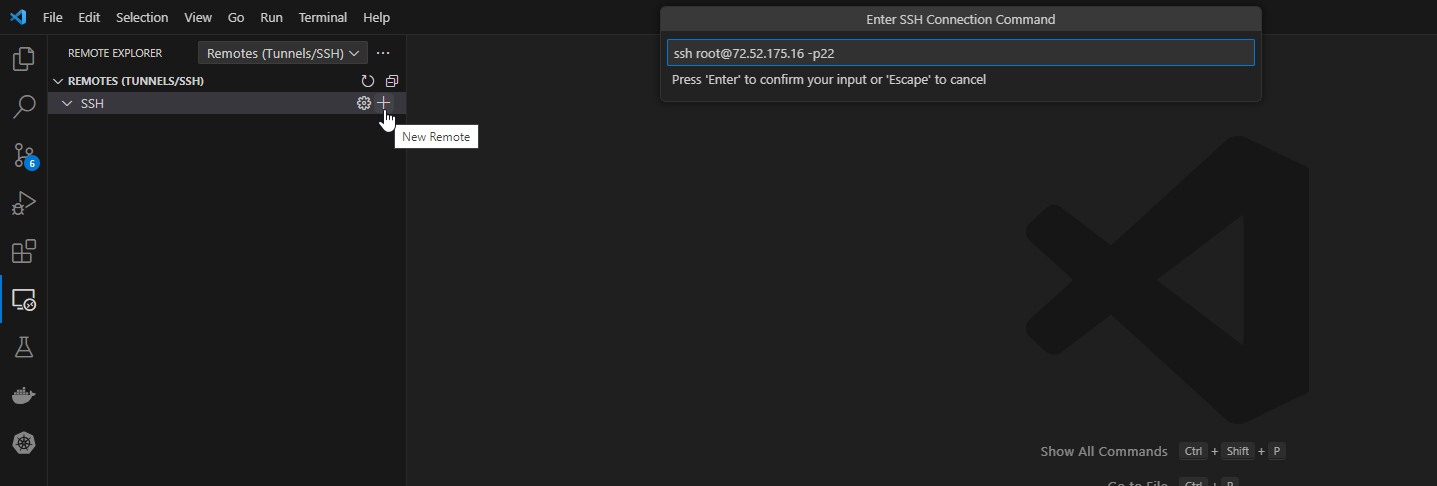
- Once the Remote Explorer plugin is installed, click on the Remote Explorer icon in the sidebar.
- Click on the "+" icon to add a new connection.
- Then put in your ssh connection for example:
ssh user@<youripaddress> -p22
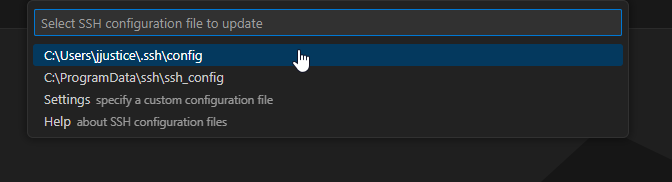
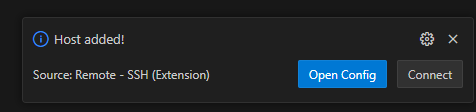
It will ask you what ssh configuration file you would like to update so it can save your host settings. Once you choose a file to update, it will save your host settings and you can choose to open the configuration file or to connect to the server.
How to Connect to Your Server using the Plugin
If you didn’t hit the “Connect” button when the host was added to the ssh configuration file, you can also click the file icon next to your new server in the ssh list. If you don’t see it, click on the refresh button.
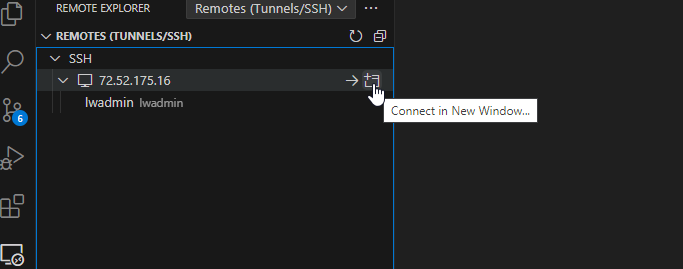
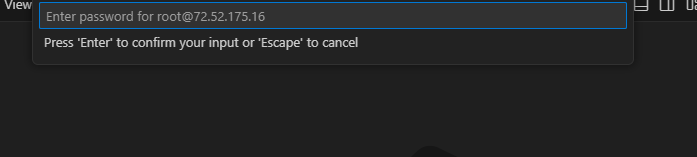
It will ask you for your ssh password
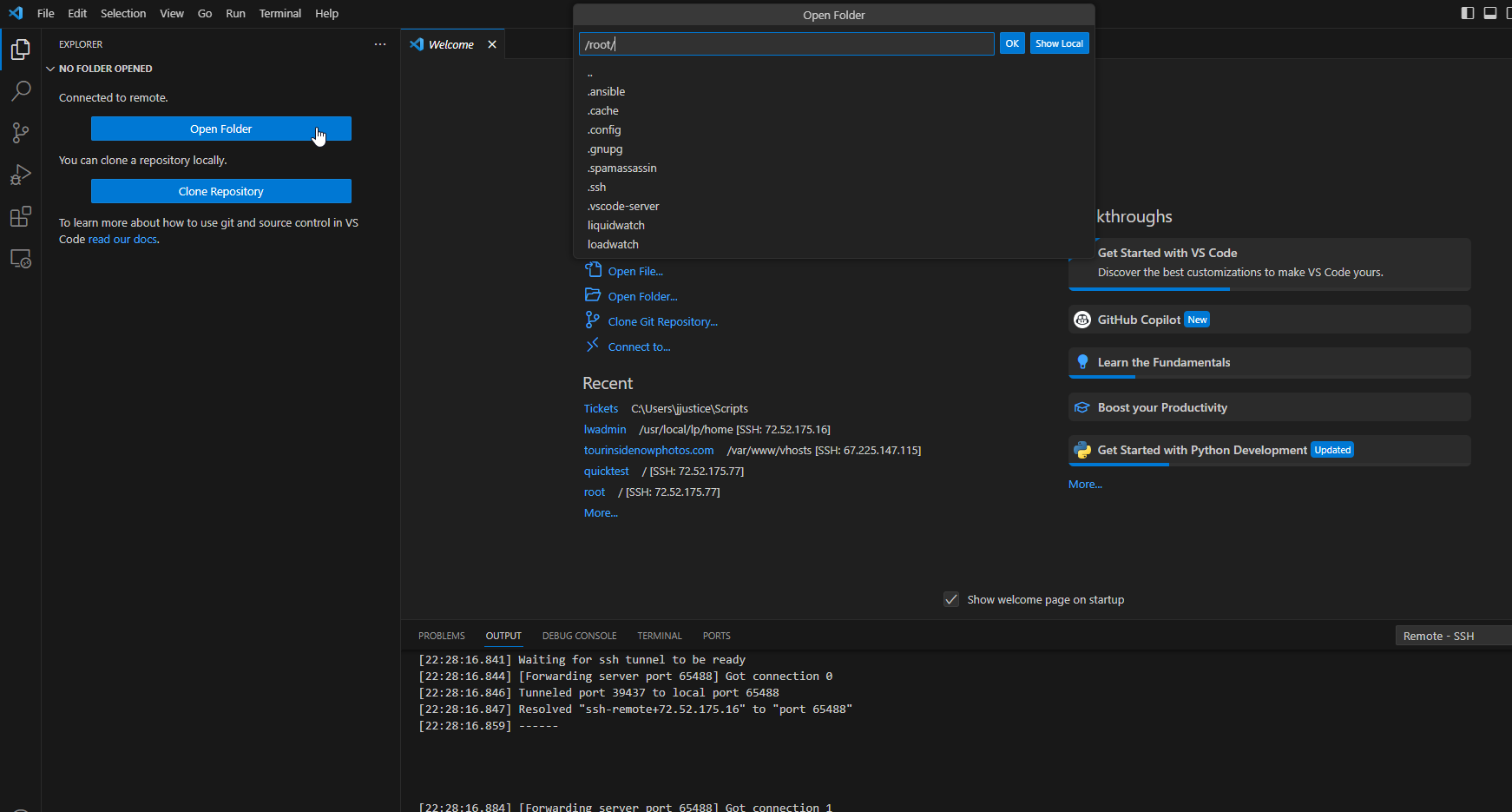
Once you are connected you would be able to do the following:
- Access files and folders like using the vscode file explorer on the left hand side.
- Open up multiple terminals in parallel on the remote instance.
- Be able to use the vscode editor for all your code which comes with intellisense autocomplete
- Add your other vscode extensions to your remote server’s instance for better developer experience (like the git extension)
Conclusion
In conclusion, Visual Studio Code (VSCode) is a powerful, versatile, and free code editor that supports a wide array of programming languages and offers numerous extensions to enhance functionality. By following the steps outlined above, you can easily install VSCode, add the Remote Explorer plugin, and connect to your server to manage files and folders directly within the VSCode interface. This setup not only streamlines your development workflow but also provides access to VSCode's extensive feature set, including its built-in terminal, editor, and file explorer, as well as IntelliSense autocomplete and the ability to use other helpful extensions. Whether you're a developer or a power user, integrating VSCode with the Remote Explorer plugin will undoubtedly boost your efficiency and make managing your remote files and folders a breeze.