
What is SQLTools
SQLTools is a versatile extension for Visual Studio Code, designed to simplify database management tasks. It supports a plethora of database systems, providing an intuitive interface to connect, query, and manage databases right from your editor. With SQLTools, you can streamline your database workflow, making it a valuable tool for developers who interact with databases regularly.
Install VSCode
- Visit the VSCode download page https://code.visualstudio.com/download and choose the version for your operating system.
- Follow the installation prompts to complete the setup.
Installing SQLTools Extension
- Open VSCode then click on the Extensions button on the left hand side (or use Ctrl+Shift+X on Windows or Command+Shift+X on Mac).
- Search for "SQLTools MySQL/MariaDB/TiDB" and click Install.
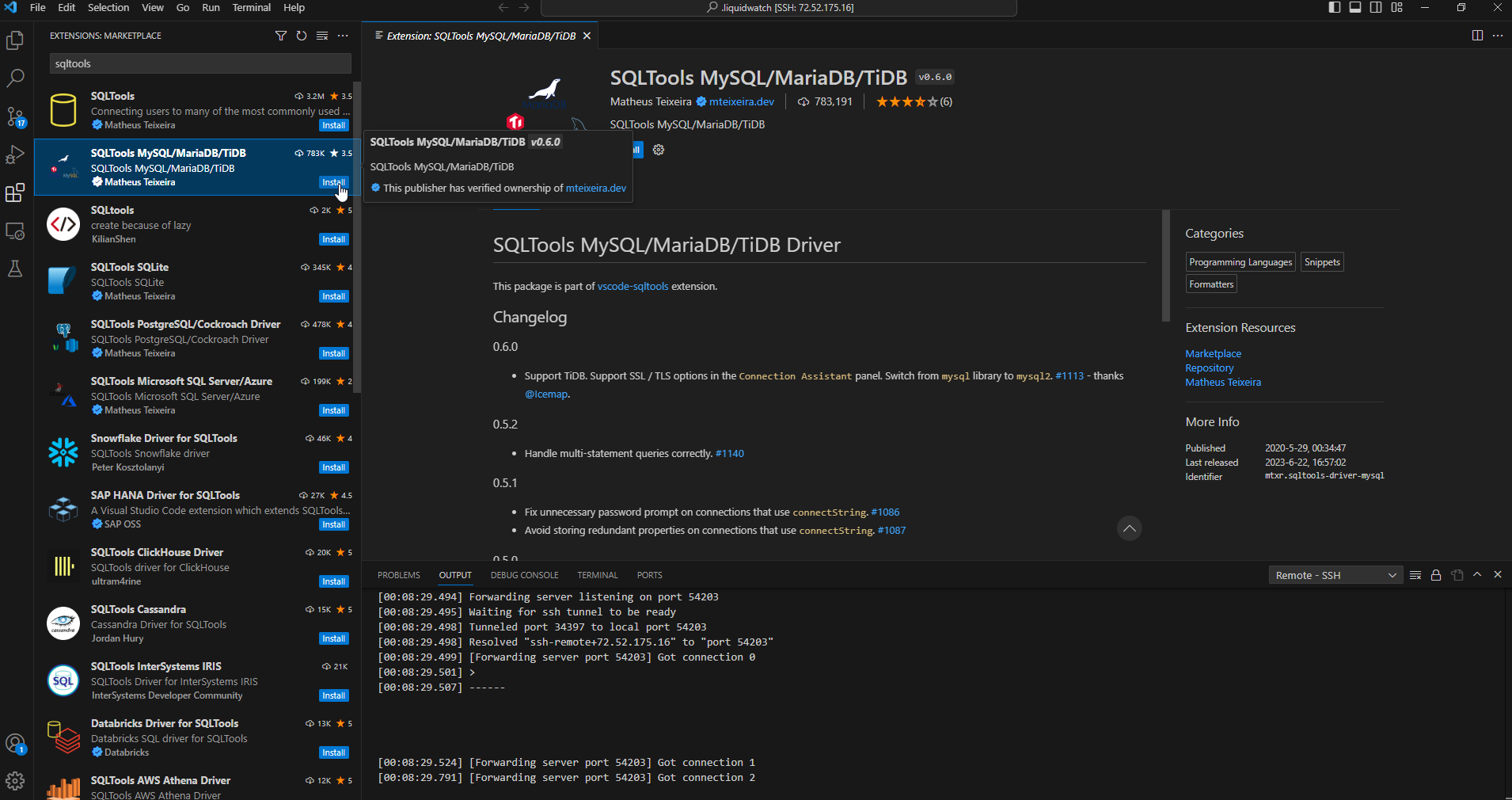
Adding a database connection
- Once the extension is installed, click on the SQLTools icon in the sidebar.
- Click on the "+" icon to add a new connection or click the “Add New Connection” button.
- Choose MySQL (or mariaDB depending on your database) from the list of DBMS options.
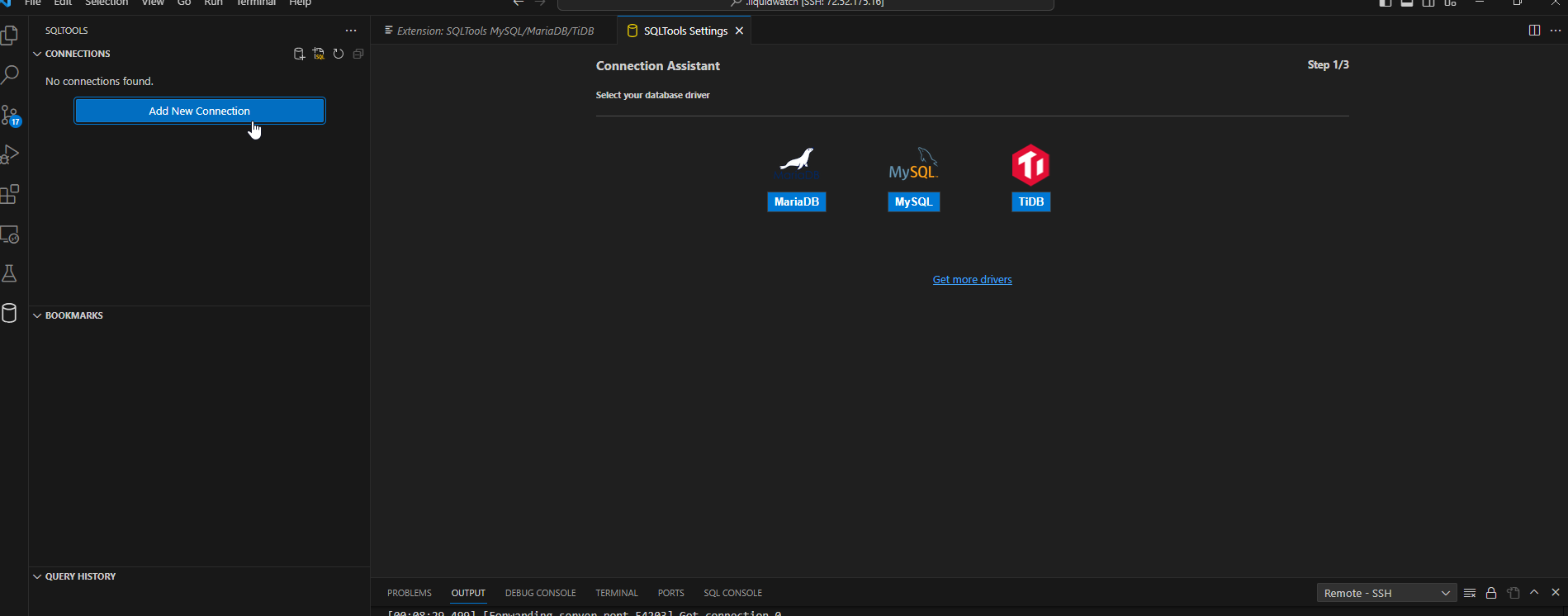
- Fill in your connection details: host, port, server address, username, and password.
- If you are connecting using the Remote Explorer extension or to a local MySQL server, your Server Address will be set to "localhost."
- If you are connecting to an external MySQL server, your Server Address will be set to the public IP address where your MySQL server resides.
- If you run into errors try the following:
- Make sure to have your clientside ip address (Where you are connecting from) allowed in your firewall. For most liquidweb servers you can use the following command in your server’s terminal:
echo "tcp|in|d=3306|s=YOURIPADDRESS" >> /etc/csf/csf.allowcsf -r
- Try using the connection string method instead.
mysql://username:password@youripaddress:3306/yourdatabasename
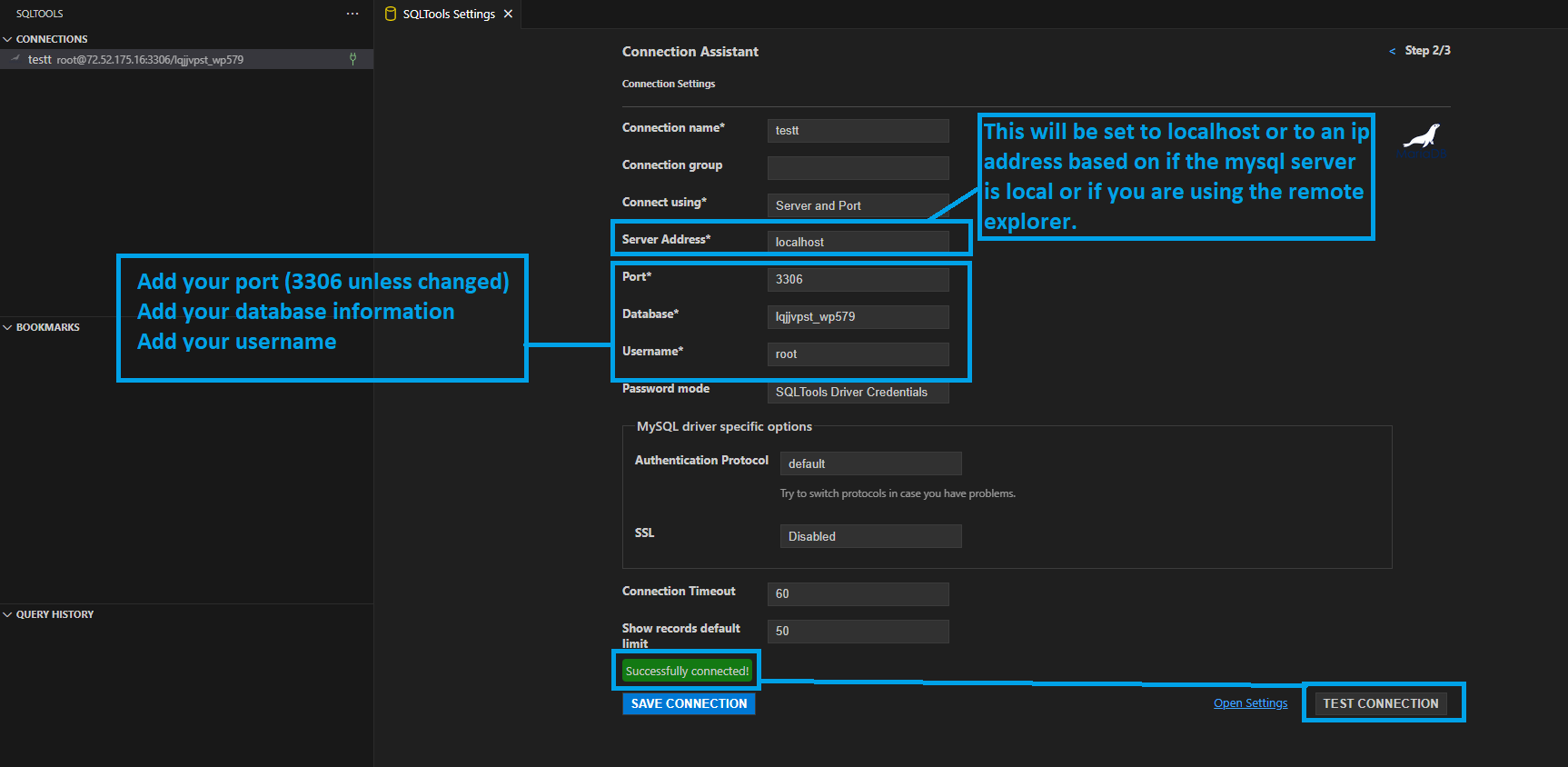
- Click “Test Connection” so you can make sure your connection is successful before clicking on “Save Connection”
Connecting to MySQL Database
- After configuring, click on the "Connect" icon next to your connection.
- Now you can view and manage your MySQL database directly from VSCode using SQLTools.
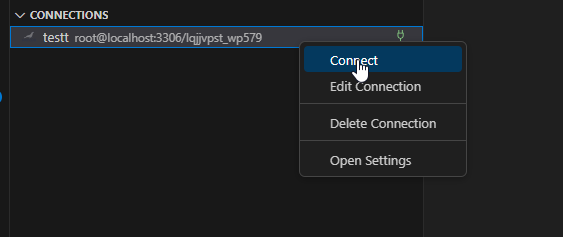
Access tables, views, records, and perform queries
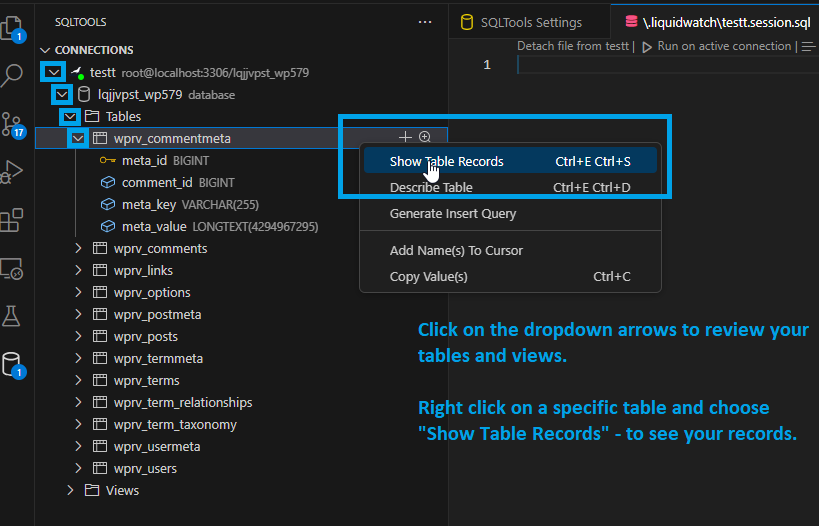
- Once you are connected to your database, click on the dropdown arrows next to the name of the connection, and name of the database to access its tables and views.
- You can right click on a specific table and choose “Show table records” to view the data.
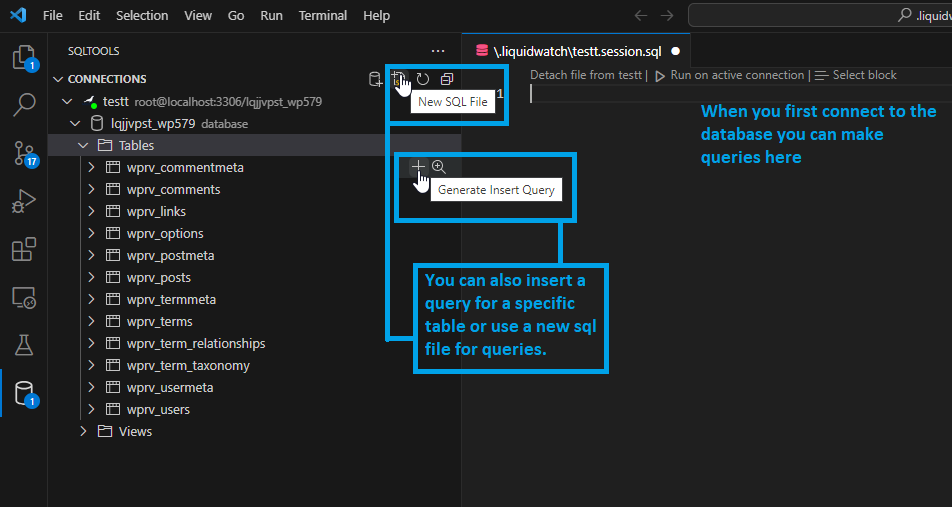
Note: You can also create queries when you first connect to the database as a blank session.sql file is automatically created for you. You can also click on the “New SQL File” button to create a new sql file for query statements or you can insert a query into a specific table by clicking on the “+” icon next to the specific table.
Conclusion
Now you have a streamlined workflow within VSCode to interact with your MySQL database using SQLTools. This setup not only augments your database management capabilities but also integrates seamlessly into your development environment. As you grow accustomed to this setup, you'll find executing queries, viewing records, and managing your database to be a smoother and more efficient process. Happy querying!