
What is DBeaver and How is it Useful?
DBeaver is a free, multi-platform database tool that supports any database having a JDBC driver. It is useful for developers, SQL programmers, database administrators, and analysts. DBeaver provides an intuitive user interface to connect to a multitude of databases including MySQL, MariaDB, PostgreSQL, SQLite, and many others. Key features include: - SQL Editor with syntax highlighting and auto-completion - Data viewer and editor - ER Diagrams - Transaction log - Data import/export - Database connection management
If you have multiple databases, this may be a good way to manage your databases.
How to Install DBeaver
- Visit the DBeaver download page: https://dbeaver.io/download/
- Choose the version for your operating system and download the installer.
- Run the installer and follow the installation prompts to complete the setup.
How to Connect to Databases
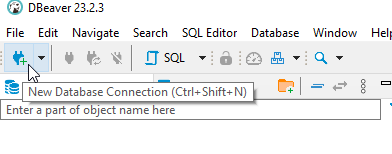
- Open DBeaver and click on ‘Database’ in the top menu, then ‘New Database Connection’ or click on the Plug icon at the top right of the custom icon ribbon.
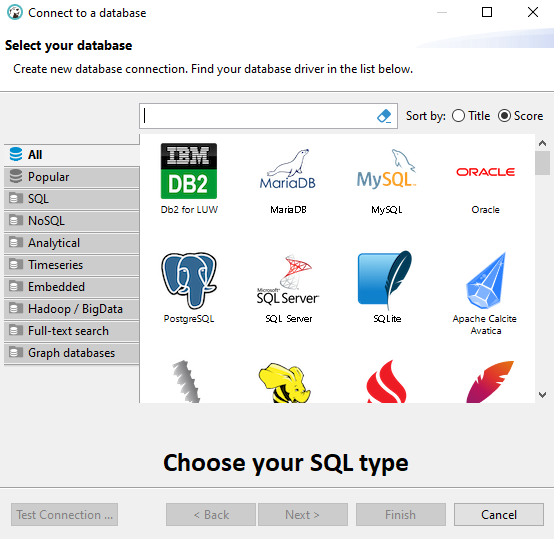
- Choose the Database Type that you want to connect to, then click “Next”
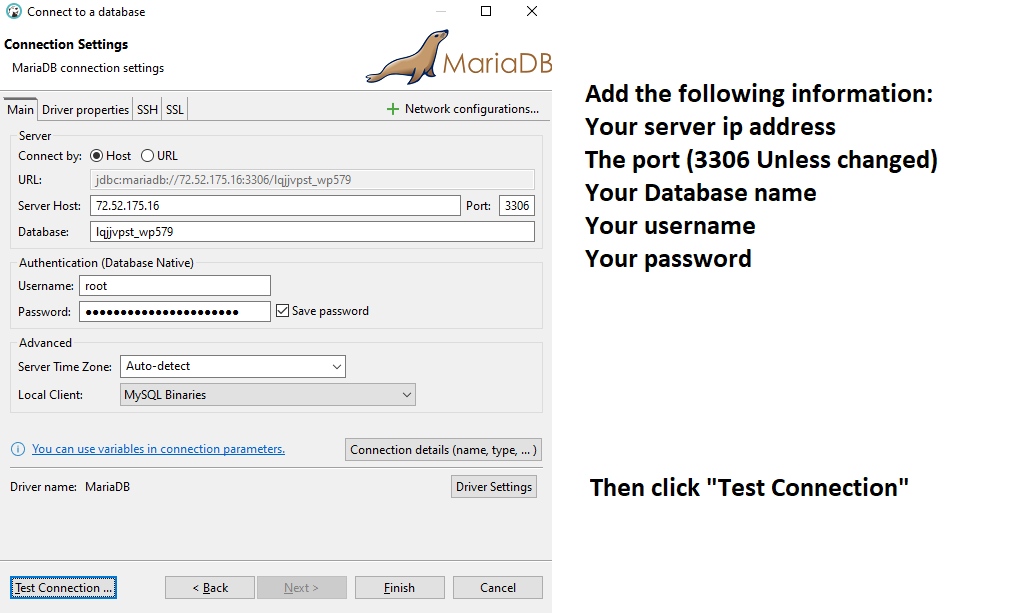
- MySQL/MariaDB
- Enter the connection settings:
- Host: The server where your database is hosted
- Port: The port MySQL/MariaDB is running on (default is 3306)
- Database/Schema: The specific database you want to connect to (optional)
- Username: Your database username
- Password: Your database password
- Click ‘Test Connection’ to ensure everything is set up correctly, then click ‘Finish’ if the test is successful.
- Enter the connection settings:
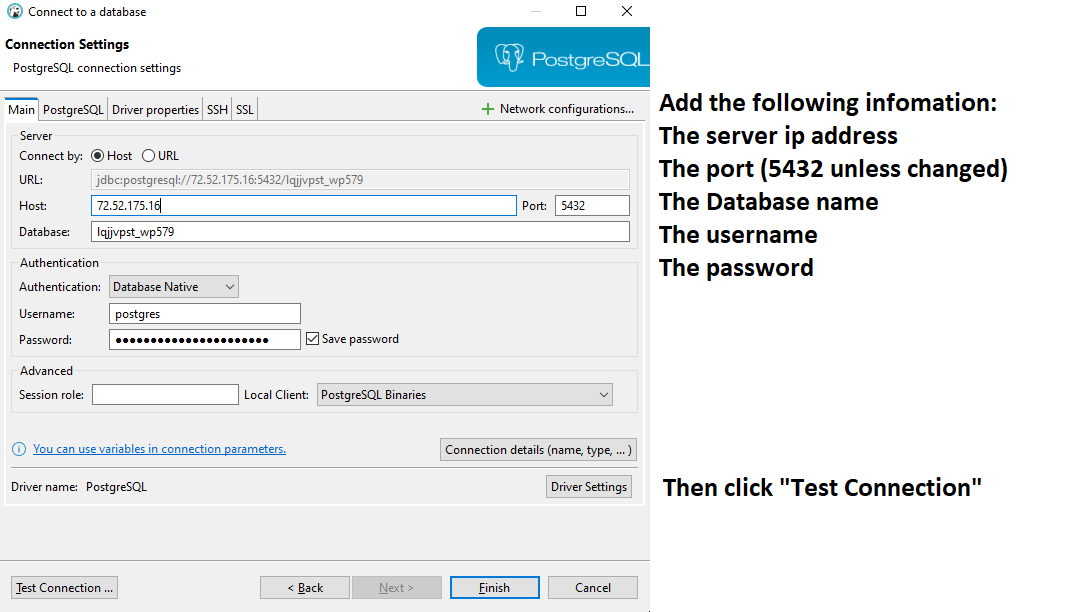
- PostgreSQL
- Input your connection details:
- Host: Your PostgreSQL server address
- Port: The port PostgreSQL is using (default is 5432)
- Database: The specific database to connect to
- Username: Your database username
- Password: Your database password
- Test the connection, and if successful, click ‘Finish’.
- Input your connection details:
- SQLite
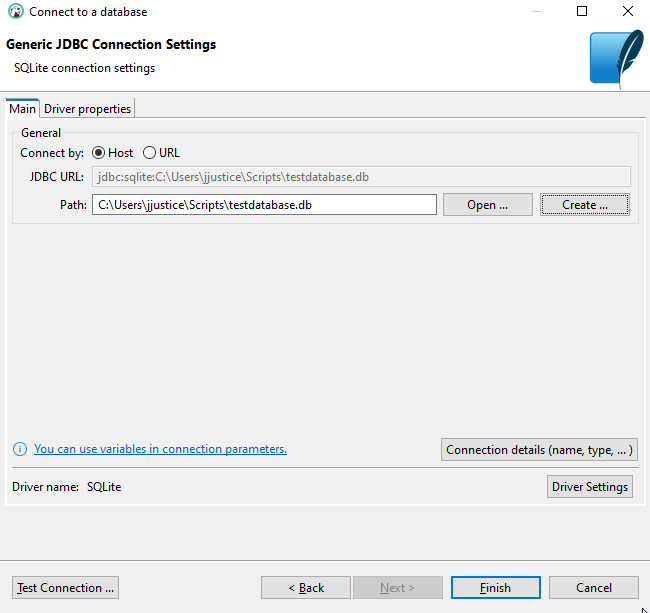
- Select your SQLite file by creating one or using the open option to select one manually.
- Test the connection, and if successful, click ‘Finish’.
Connection Troubleshooting
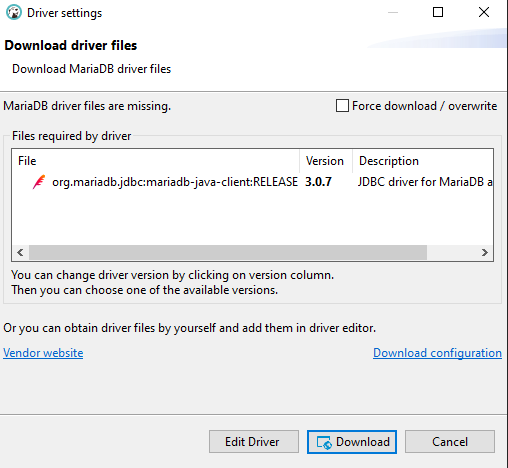
- Based on the SQL connection type, it may ask you to install an additional driver. Click “Download” to allow the driver to install to continue the connection test.
- Make sure to have your clientside ip address (Where you are connecting from) allowed in your firewall. For most servers using csf you can use the following command in your server’s terminal:
echo "tcp|in|d=3306|s=YOURIPADDRESS" >> /etc/csf/csf.allowcsf -r- Note: If you are using something else like firewald you will configure that allow the client ipaddress
Access tables, views, records, and perform queries
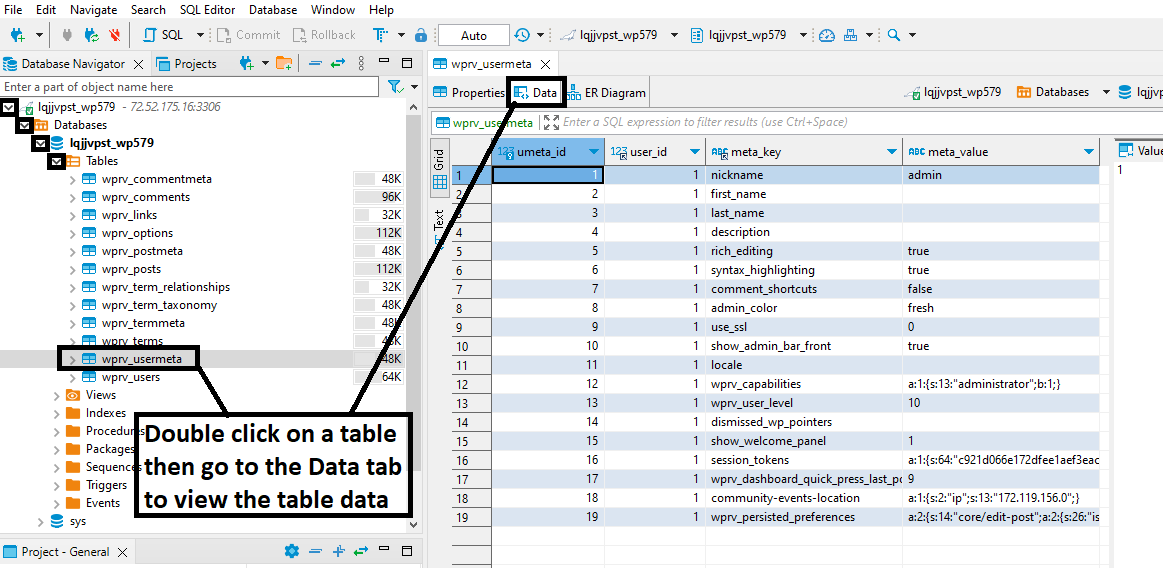
- Once you are connected to your database, click on the dropdown arrows next to the name of the connection, and name of the database to access its tables and views.
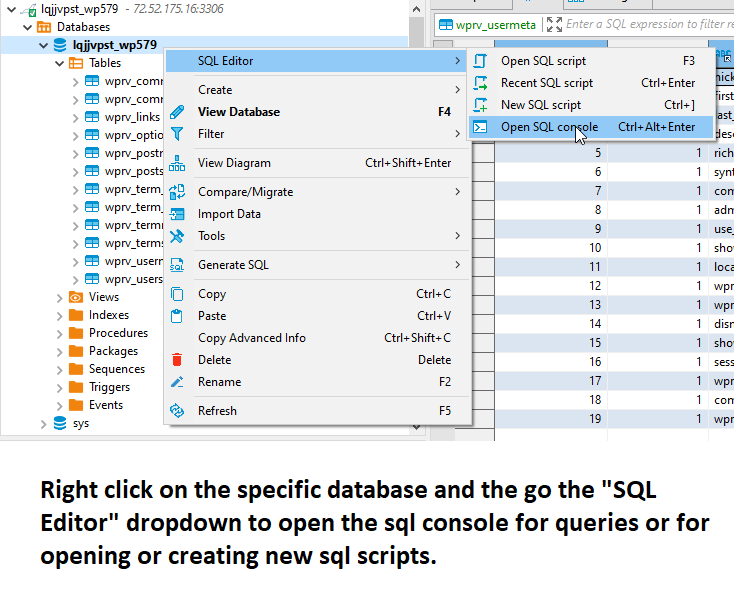
- You can right click on a specific database then go to SQL editor for creating queries.
- You can also right click on a specific table then go to the Generate SQL dropdown menu to make specific sql queries for a specific table.
Conclusion
Connecting to various databases using DBeaver is a straightforward process, thanks to its user-friendly interface and support for a wide array of databases. By following the steps provided above, you can easily establish connections to MySQL, MariaDB, PostgreSQL, and SQLite databases. DBeaver’s rich feature set, including its robust SQL editor, data viewer, and ER Diagrams, makes it a powerful tool for anyone working with databases. Whether you are a developer, DBA, or analyst, DBeaver provides all the necessary tools to manage your databases efficiently and effectively.